
Receive goods
For the office team
When a delivery arrives, book it in so your stock and job costs are right.
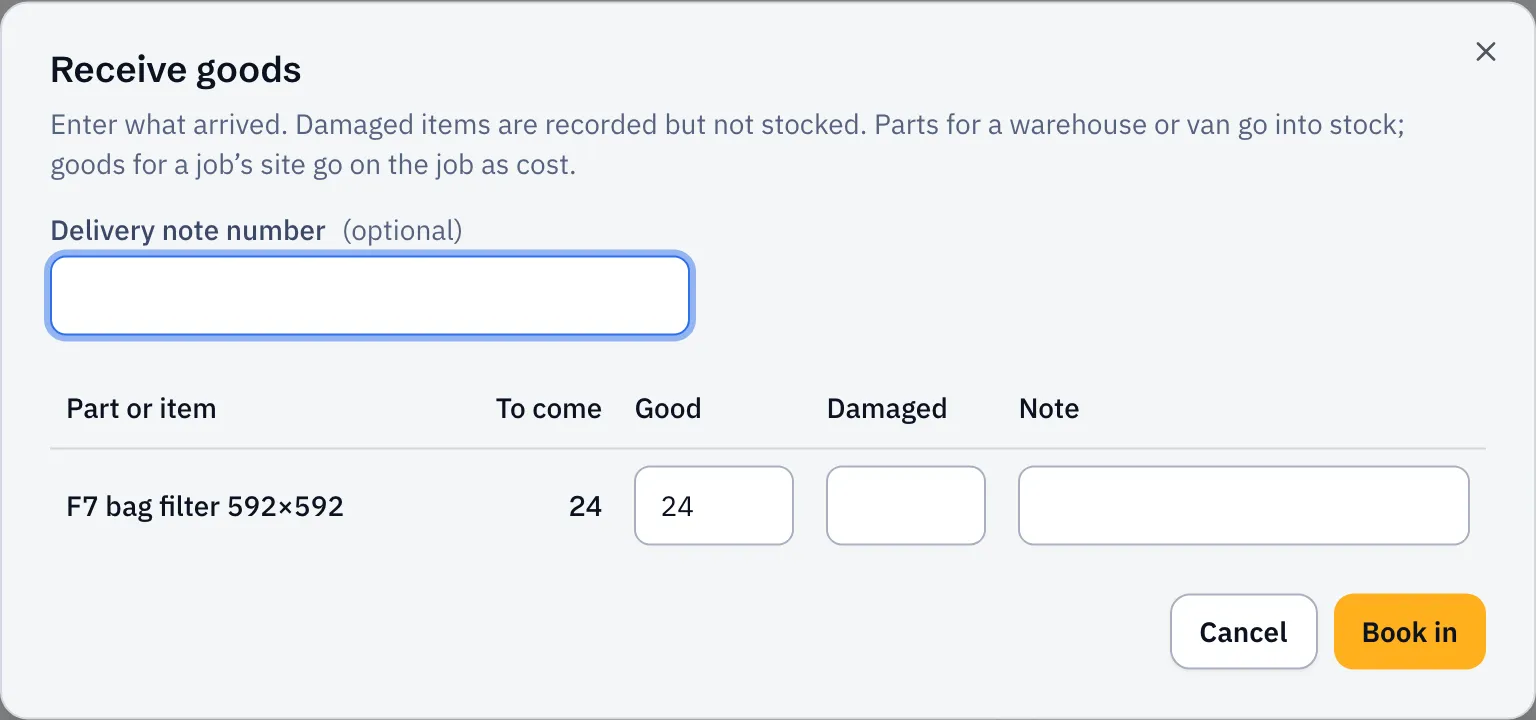
- Open the purchase order and select Receive goods.
- Enter the Delivery note number if there is one.
- For each line, enter how many arrived in good condition under Good, and how many are Damaged.
- Add a Note if something’s wrong, like “Box crushed”.
- Select Book in.
What happens next
Section titled “What happens next”- Parts for a warehouse or van go into stock at the order price.
- Goods delivered to a job’s site go on that job as material cost, ready to price on the invoice.
- Damaged items are recorded on the order but not added to stock.
If only some of the order came, it shows Part received and the rest stays To come. Book in the next delivery the same way. Once everything has arrived it shows Received.
You can’t book in more than you ordered. If the supplier sent extra, raise another order for it.
Keep a photo of the delivery note on the order: scroll to Files and select Upload file.