
Add parts
For the office team
- Open Stock & purchasing and select New part.
- Fill in the SKU (your part code) and Name.
- Add a Category, like Heating or Electrical, so you can filter by trade.
- Enter the Cost price you usually pay and, if you have one, the Sell price you charge.
- Choose the Preferred supplier. Suggested orders go to them.
- Select Add part.
Minimum and maximum
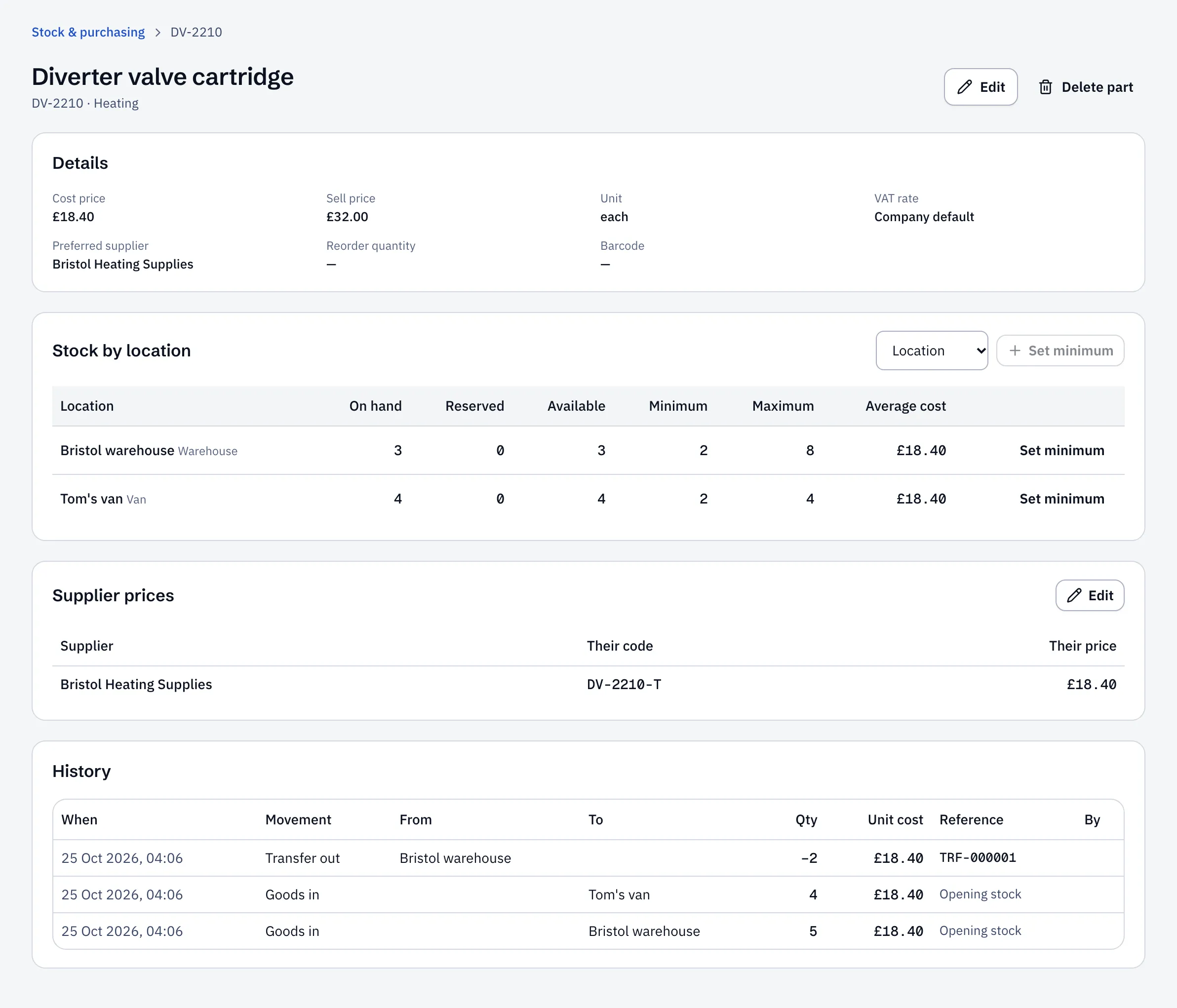
Section titled “Minimum and maximum”On the part’s page, under Stock by location, select Set minimum next to a location (or pick one from Location to add it). Enter the Minimum and, optionally, the Maximum.
When stock drops below the minimum, the part shows Below min and the office gets a low-stock alert. Suggested orders top it back up to the maximum.
Set minimums for vans too: a van running low raises the same alert.
Supplier prices
Section titled “Supplier prices”Under Supplier prices, select Edit, then Add supplier price for each supplier with Their code and Their price. Purchase orders to that supplier use their price and code. Without one, orders use the cost price.
Costs and who sees them
Section titled “Costs and who sees them”Cost prices and average costs only show to people whose role allows them. Engineers never see costs in the app.
Sustainable ERP values stock at the average cost of what you’ve bought. It updates each time goods come in.