
Build or change a form
For owners and managers
- Open Settings → Form templates.
- Select New form, give it a Name and select Create and open builder. To change an existing form, select it in the list.
Sections and questions
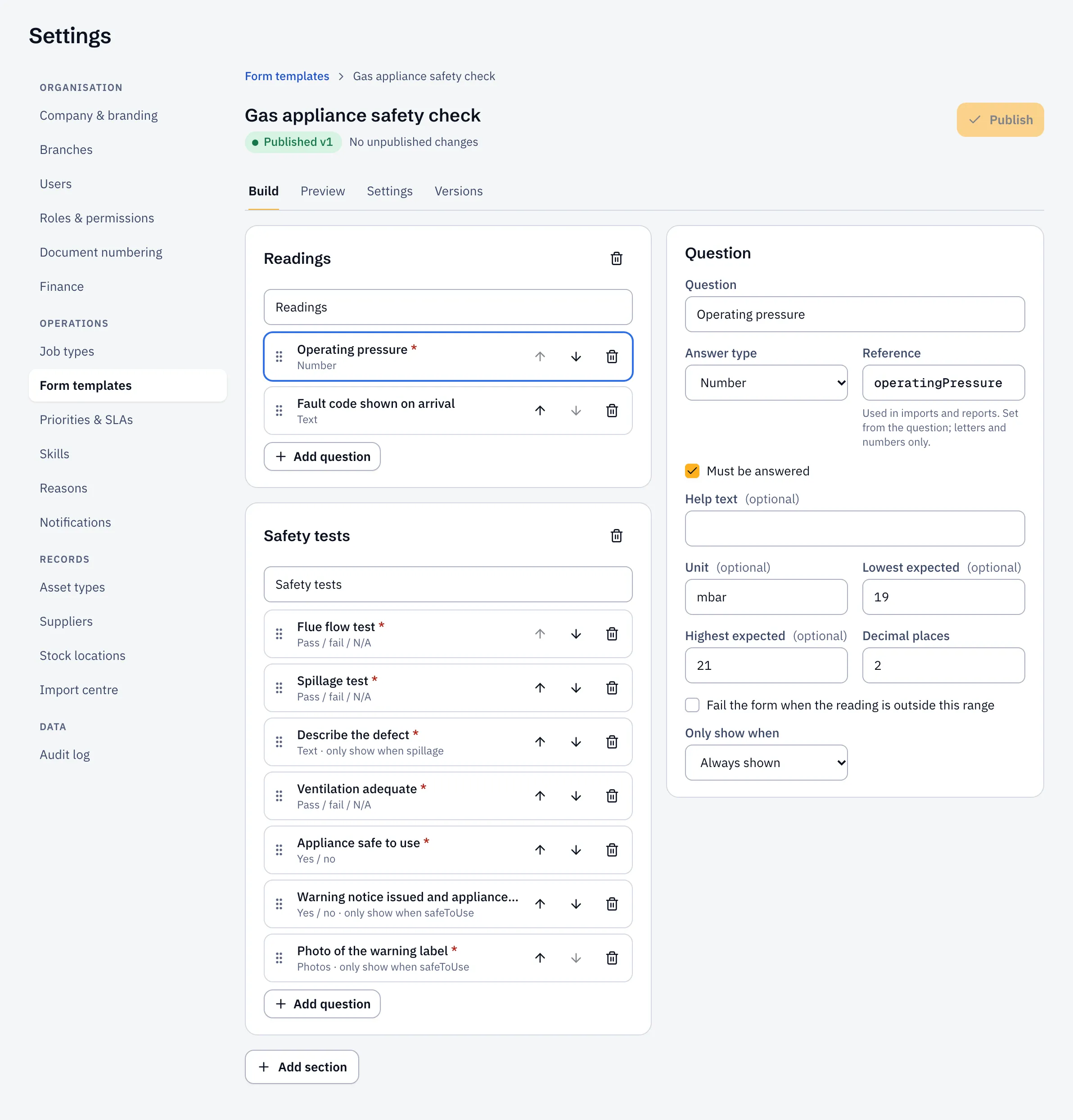
Section titled “Sections and questions”- Select Add section for a new group of questions, and type its title.
- Select Add question, then set it up on the right:
- Question: the wording the engineer sees.
- Answer type: yes / no, pass / fail / N/A, number, text, one or several choices, date, photos, guidance (text to read, no answer) or repeating rows.
- Must be answered, and Help text if it needs explaining.
- Drag a question by its handle to move it, or use the arrows.
Readings and pass or fail
Section titled “Readings and pass or fail”For a Number, set the Unit and the Lowest expected and Highest expected readings. A reading outside them warns the engineer. Tick Fail the form when the reading is outside this range to make it fail the form.
A Pass / fail / N/A answered Fail also fails the form. See When a form fails.
Repeating rows
Section titled “Repeating rows”Use Repeating rows for one set of answers per item, like each detector or each circuit. Set the Row name (“Circuit” becomes Circuit 1, Circuit 2…) and the questions in each row.
Questions that depend on others
Section titled “Questions that depend on others”Under Only show when, pick an earlier question and the answer that shows this one. For example, show “Warning notice issued” only when “Appliance safe to use” is No.
Publish
Section titled “Publish”Your changes save as a draft as you go. Preview shows the form as engineers will see it. If something needs fixing, the builder lists it.
Select Publish, say What changed, and publish. Engineers get the new version on visits that start from now on. Discard changes goes back to the last published version.