
Move stock to a van
For the office team
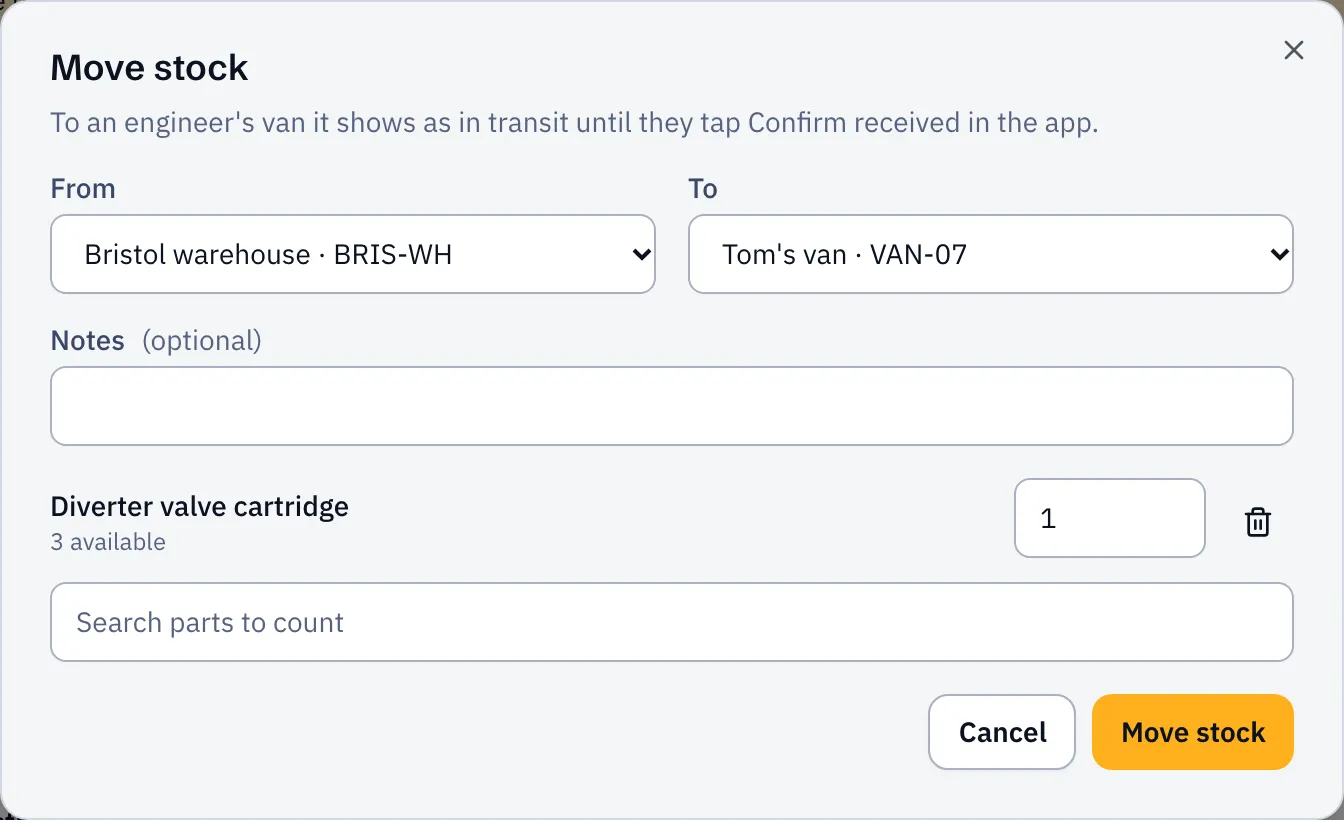
- Open Stock & purchasing and select Transfer.
- Choose where it’s coming From and going To.
- Search for each part and set the Qty. You can see how many are available where it’s coming from.
- Select Move stock.
Going to a van
Section titled “Going to a van”Stock sent to an engineer’s van shows as In transit until the engineer taps Confirm received in the app. They get a notification that it’s on its way. Until then it’s off the warehouse but not yet on the van.
If they’ve had it but forgot to confirm, open Transfers, find it and select Confirm received for them.
Between stores
Section titled “Between stores”Transfers to a warehouse or store arrive straight away.
Changed your mind
Section titled “Changed your mind”While a transfer is In transit, select Cancel transfer. The parts go back where they came from.