
Send a quote
Write it
Section titled “Write it”- Open Quotes and select New quote. (You can also start one from an enquiry with Quote first, or from a job’s menu with Raise quote.)
- Find the customer, choose the Site and who to Send to, and give it a Title.
- Select Create draft.
- Select Add line for each item: choose the kind (labour, materials and so on), then fill in the Description, quantity, Unit price and VAT rate. Add a Unit cost too if you want to see your margin.
- Tick a line as optional for anything the customer can choose to add, like a filter or a longer warranty.
- Fill in the Scope (customer-visible), and any Exclusions or Assumptions.
- Select Save draft.
The totals are worked out for you as you save.
Send it
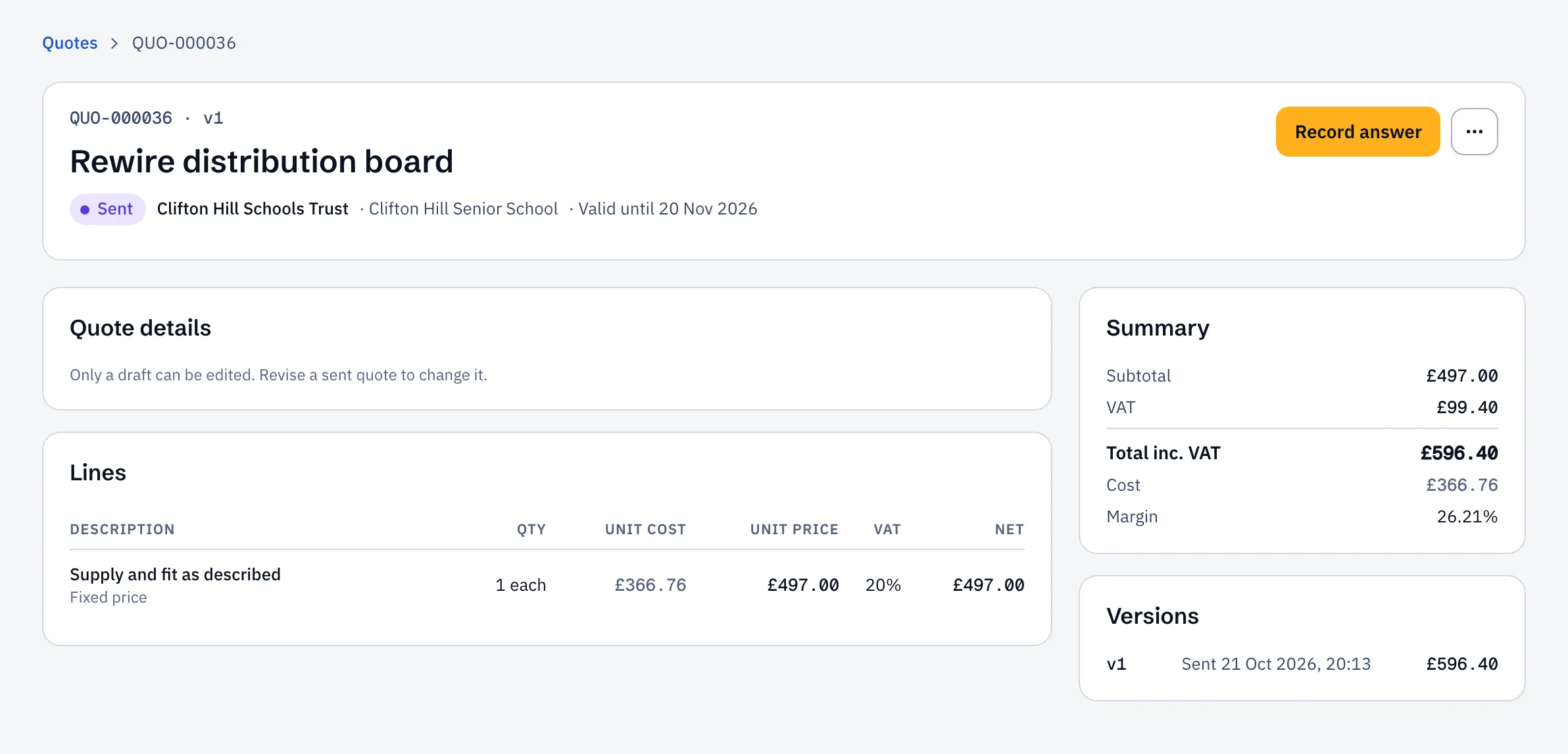
Section titled “Send it”Select Send to customer. They get an email with the PDF and a link to accept or decline online.
If the quote is over your approval rules, you’ll see Submit for approval instead. See Approval limits.
By default a quote is valid for 30 days, and Sustainable ERP reminds the customer 3 and 7 days after sending if they haven’t answered.
When they accept
Section titled “When they accept”You’re told straight away. Open the quote and select Convert to job, choose the job type and priority, and the job is created with the accepted prices as its lines.
If they accept by phone instead, select Record answer and note how they answered.